Owner's manual · Model VX-1VX-P
Feature · iPad
Voxlight on iPad
A desktop-class audiobook app
These iPad features come with the next update to Voxlight. Want them now? Join the beta on TestFlight
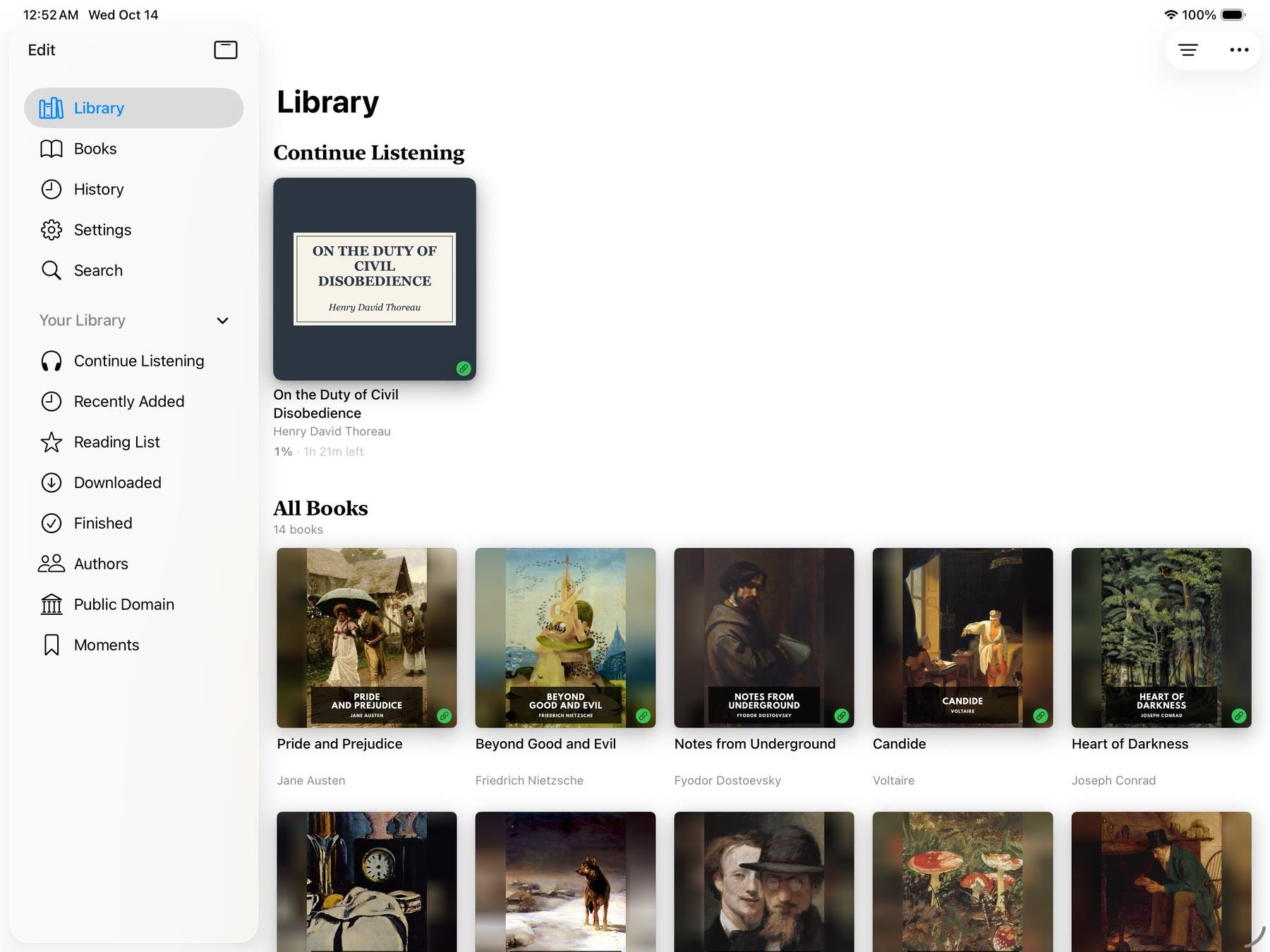
Voxlight treats the iPad as its own kind of computer. The library lives in a sidebar. The Books tab is a sortable table. The player puts the cover on one side and the book's text on the other, full height, in either orientation. The reader sets real book margins and turns to a single page when you stand the iPad up. There is a menu bar with every command and its shortcut, a right-click menu on every book, and drag and drop in and out. It is still the same app that syncs your own audiobook with your own ebook, word by word. On a 13-inch iPad Pro it finally looks like it was made for one.
A menu bar that knows the app
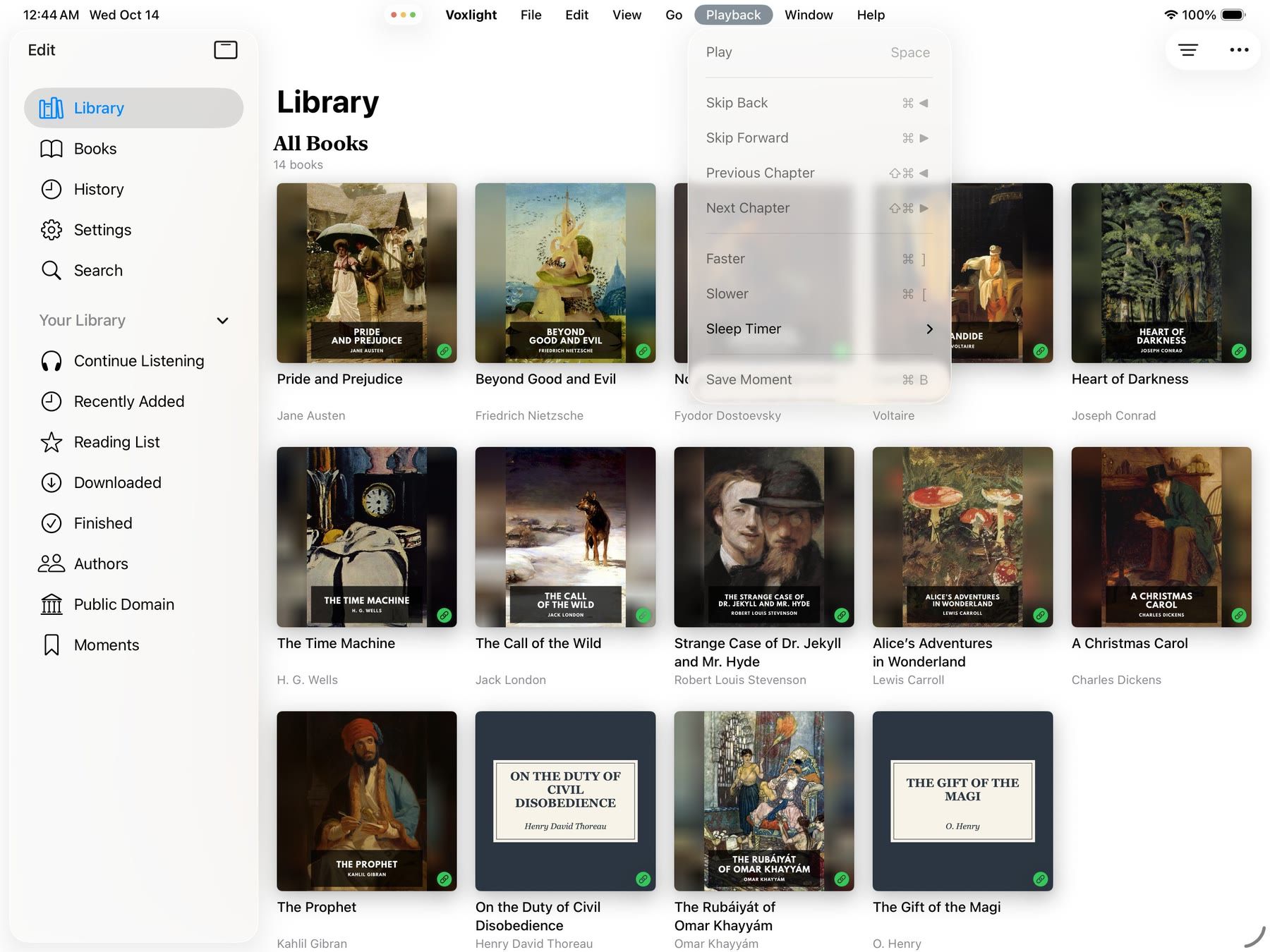
Swipe down from the top of the screen, or move the pointer there, and Voxlight shows a full iPadOS menu bar: File, Edit, View, Go, Playback, Window and Help. Every item shows its shortcut. Hold Command anywhere and iPadOS lists the same set. One source drives the menus, the shortcut list and the keys, so they never disagree.
Close works the way you expect. Command-W closes the topmost thing first: a sheet, then the side pane, then the player or the book. Only when nothing is open does it close the window. Open in New Window puts a book or the reader in a window of its own, beside the library.
| Keys | Action |
|---|---|
| Space | Play or pause |
| ⌘ ← / ⌘ → | Skip back / skip forward |
| ⇧ ⌘ ← / ⇧ ⌘ → | Previous / next chapter |
| ⌘ ] / ⌘ [ | Faster / slower |
| ⌘ B | Save a moment |
| ⌘ L | Go to Now Playing |
| ⌘ K | Live Text |
| ⌘ 1 to ⌘ 5 | Library, Books, History, Settings, Search |
| ⌘ F | Find (Search Book in the reader) |
| ⌘ Z / ⇧ ⌘ Z | Undo a jump / redo |
| ⌘ T | Contents |
| ⌘ + / ⌘ − | Larger / smaller text |
| ⌥ ⌘ T | Themes & Settings |
| ⇧ ⌘ O | Add one book |
| ⌥ ⇧ ⌘ O | Add several books |
| ⌘ , | Settings |
| ⌘ W / Esc | Close the topmost surface |
| Arrows, Page Up / Page Down, Space / ⇧ Space | Turn pages in the reader |
The Playback menu also holds the sleep timer: a set of durations, End of Chapter, and Turn Off Timer.
Your library in the sidebar
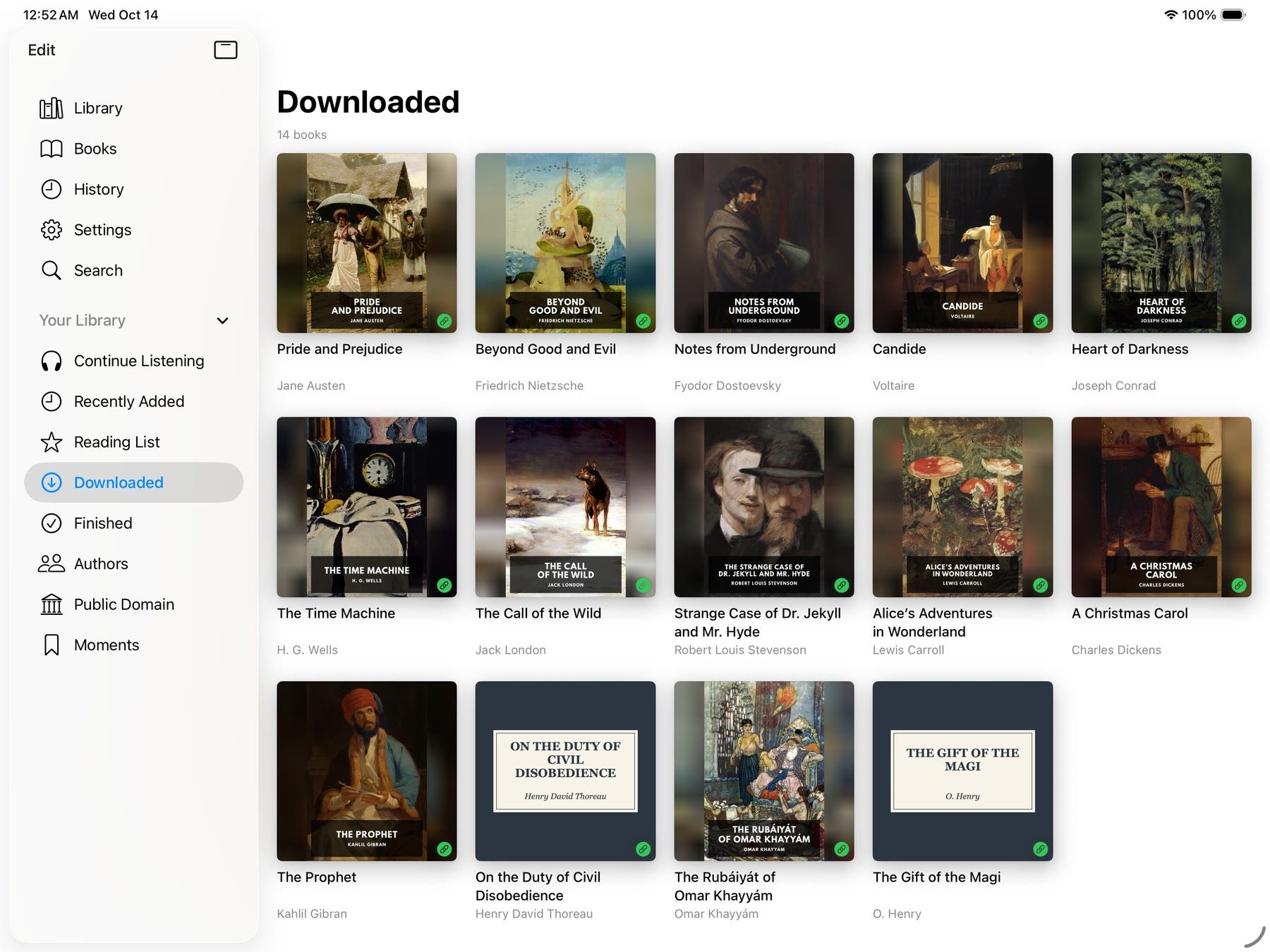
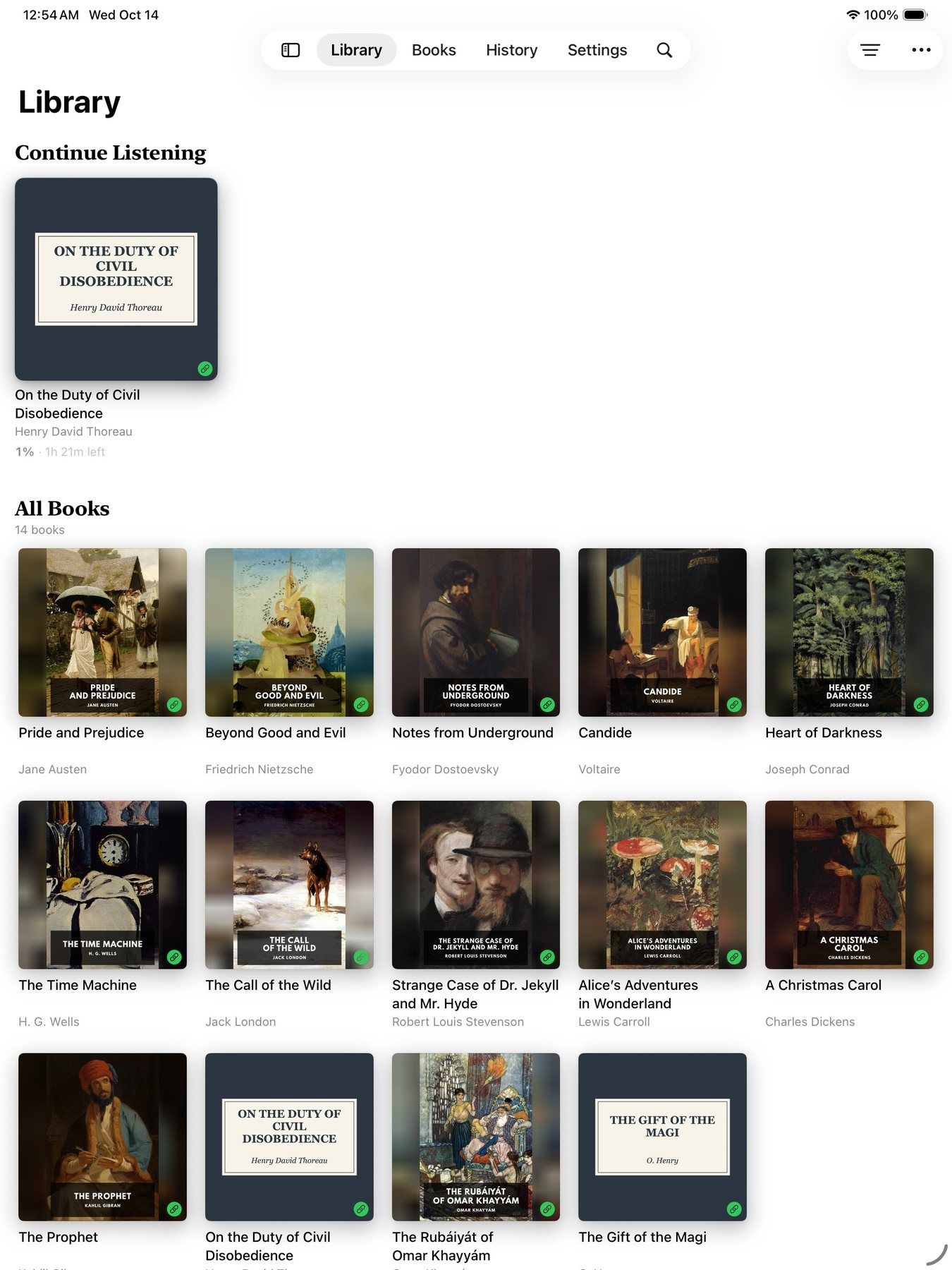
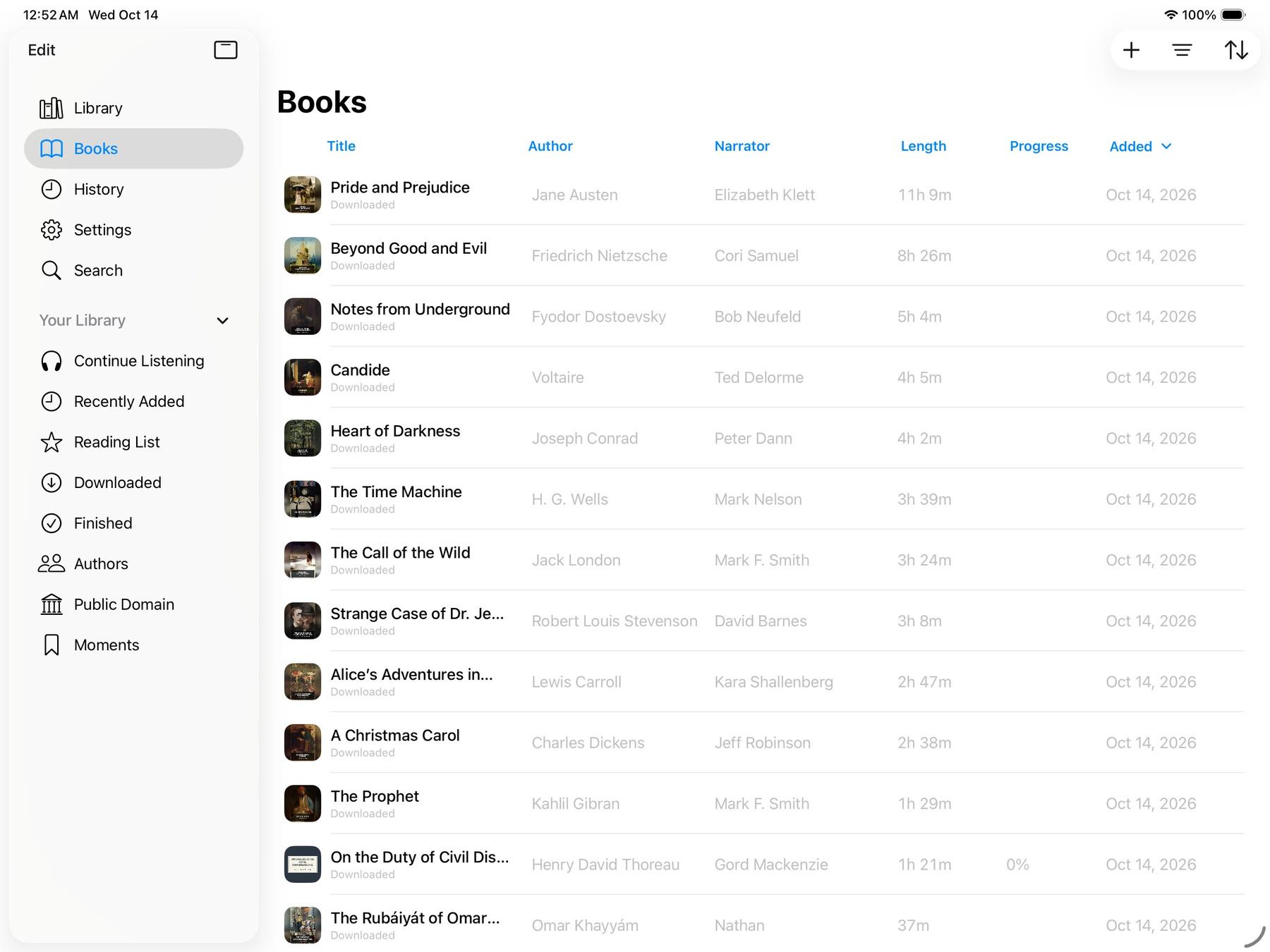
The sidebar carries the app's tabs and, under Your Library, the ways you actually browse: Continue Listening, Recently Added, Reading List, Downloaded, Finished, Authors, Public Domain and Moments. Each opens its own grid. Covers show whole, on a matte drawn from their own art, so the title printed on a cover is never cropped. Captions get two lines. The grid adds columns as the window grows.
Books as a table
On a full-size iPad the Books tab is a real table: Title, Author, Narrator, Length, Progress and Added. Click a column header to sort by it. The sort runs in the database, so it stays quick with thousands of books.
Right-click menus everywhere
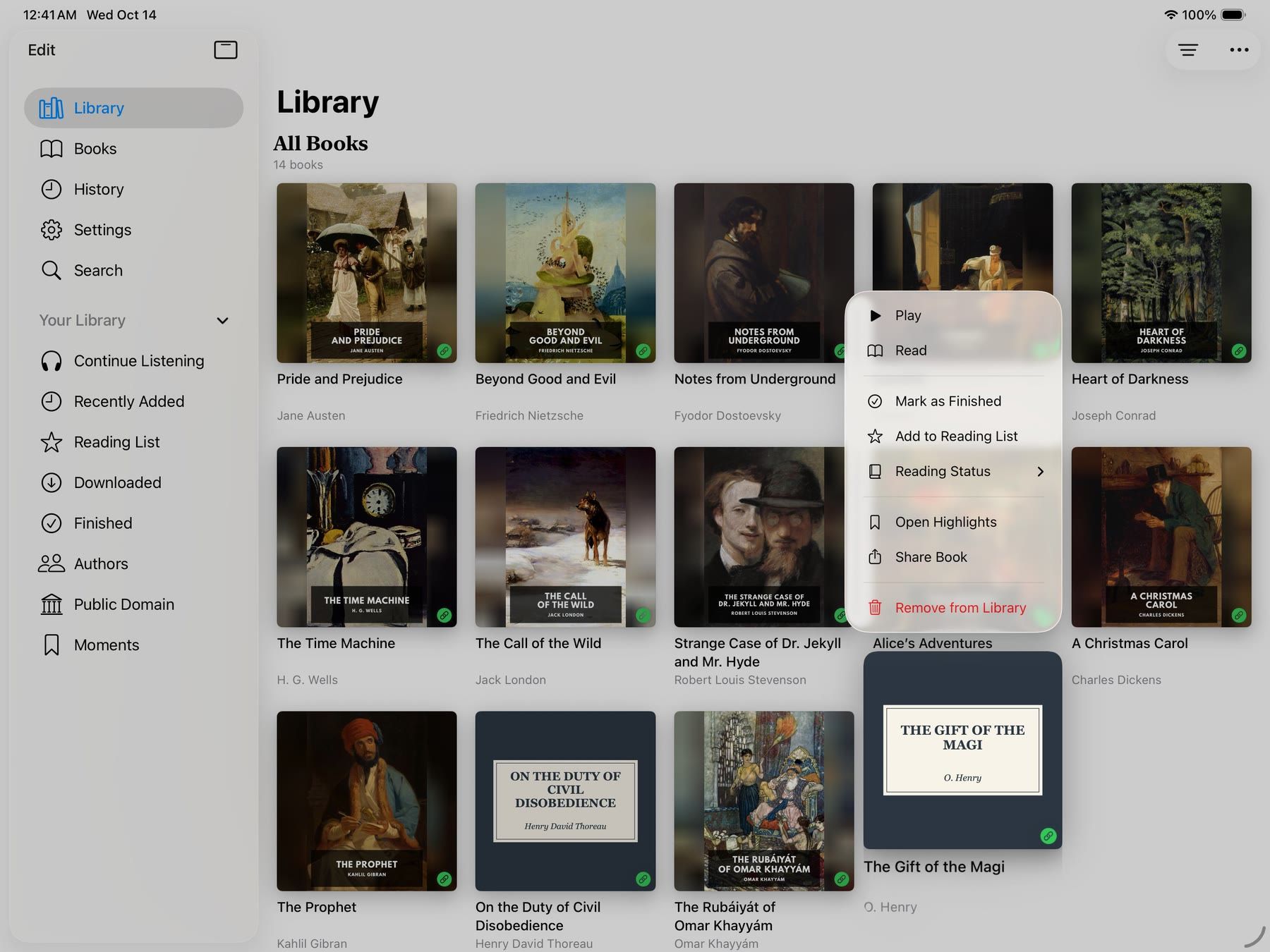
Right-click a book, or long-press it, and you get the same menu wherever that book appears: Play, Read, Mark as Finished, Add to Reading List, Reading Status, Open Highlights, Share Book and Remove from Library. Removing asks first. Moments get their own menu with Play Clip and Copy Transcript.
Drag and drop, in and out
Drop audiobook or ebook files from the Files app onto the Library or the Books list and Voxlight imports them. Drop several at once and it asks whether they are one book or several before it imports anything. Drag a book or a moment out of Voxlight and drop it into another app.
A two-pane player
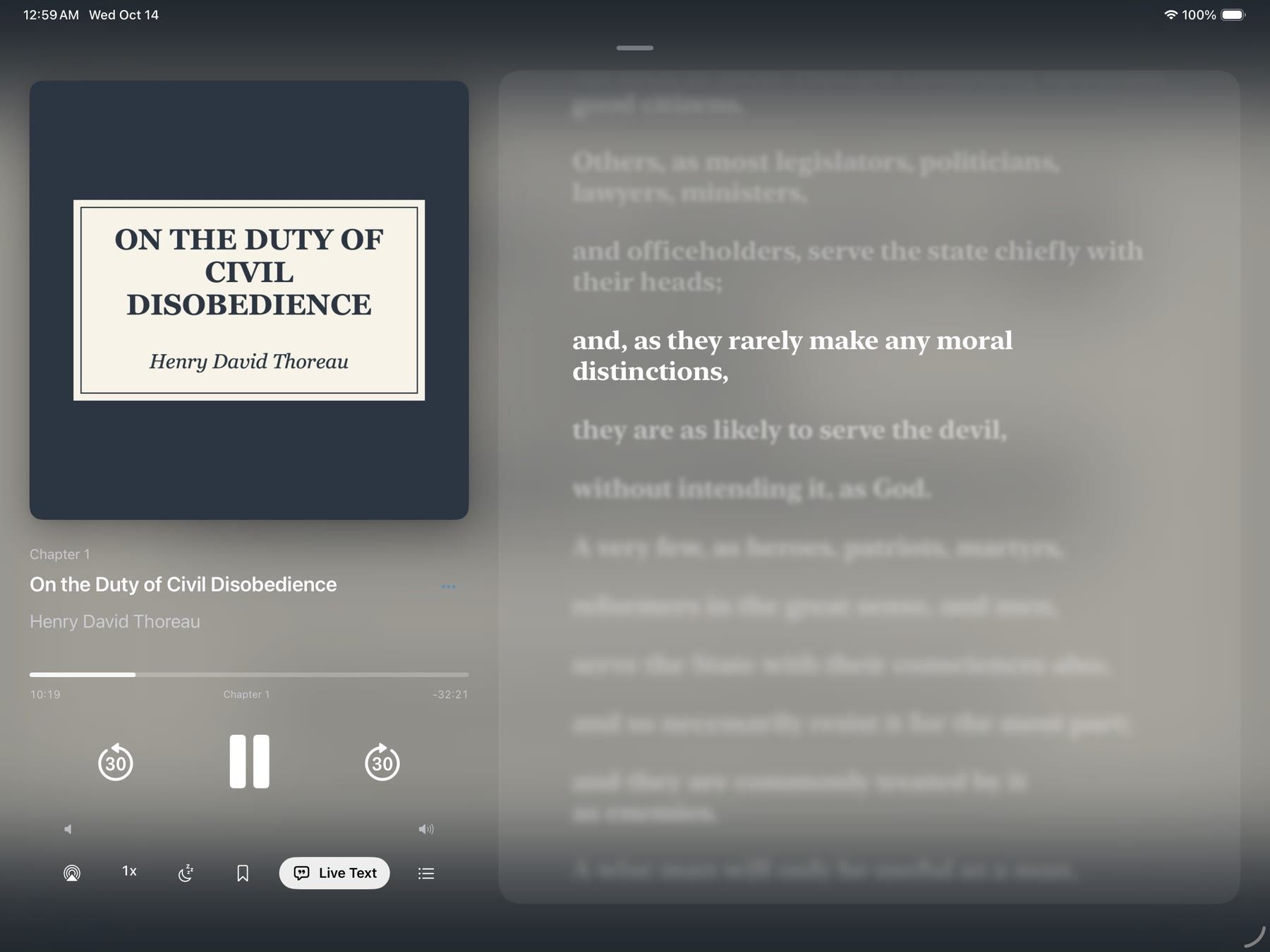
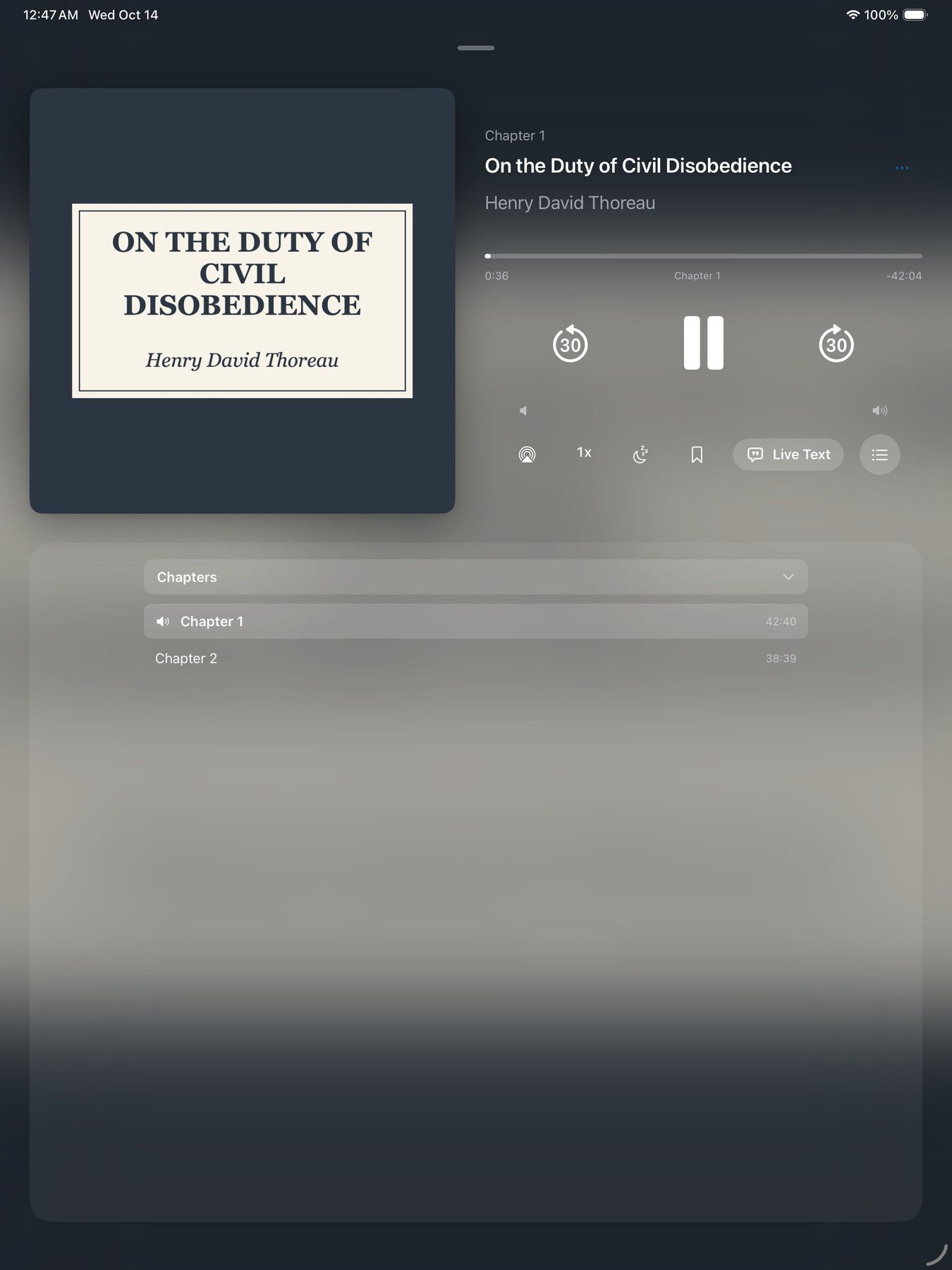
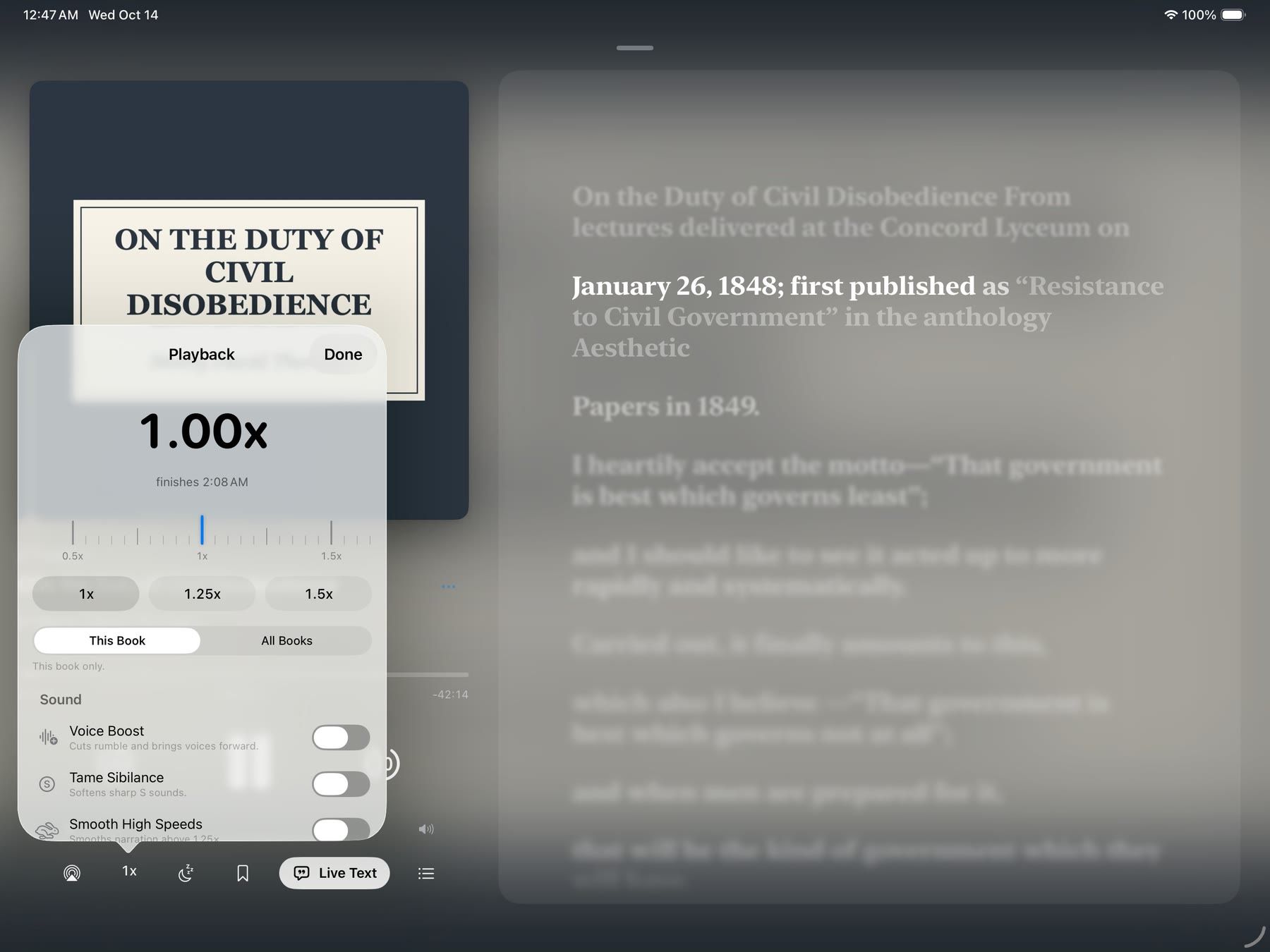
The player is laid out for the screen it is on. In landscape, a column with the cover and the transport sits beside a full-height pane. In portrait, the player becomes a band across the top with the pane below it, running to the bottom of the screen. The pane shows Live Text, the book's own words lit line by line as the narrator reads them, or the chapter list. Close the pane and the cover grows to fill the space. The cover holds still as you switch panes, play and pause, or rotate.
Live Text keeps the playing line when you turn the iPad, and it shows the book's own capitals and punctuation. Speed and sleep timer open as popovers on their buttons. The transport buttons grow with the screen, so they are easy to hit with a finger or a pointer.
A reader with book margins
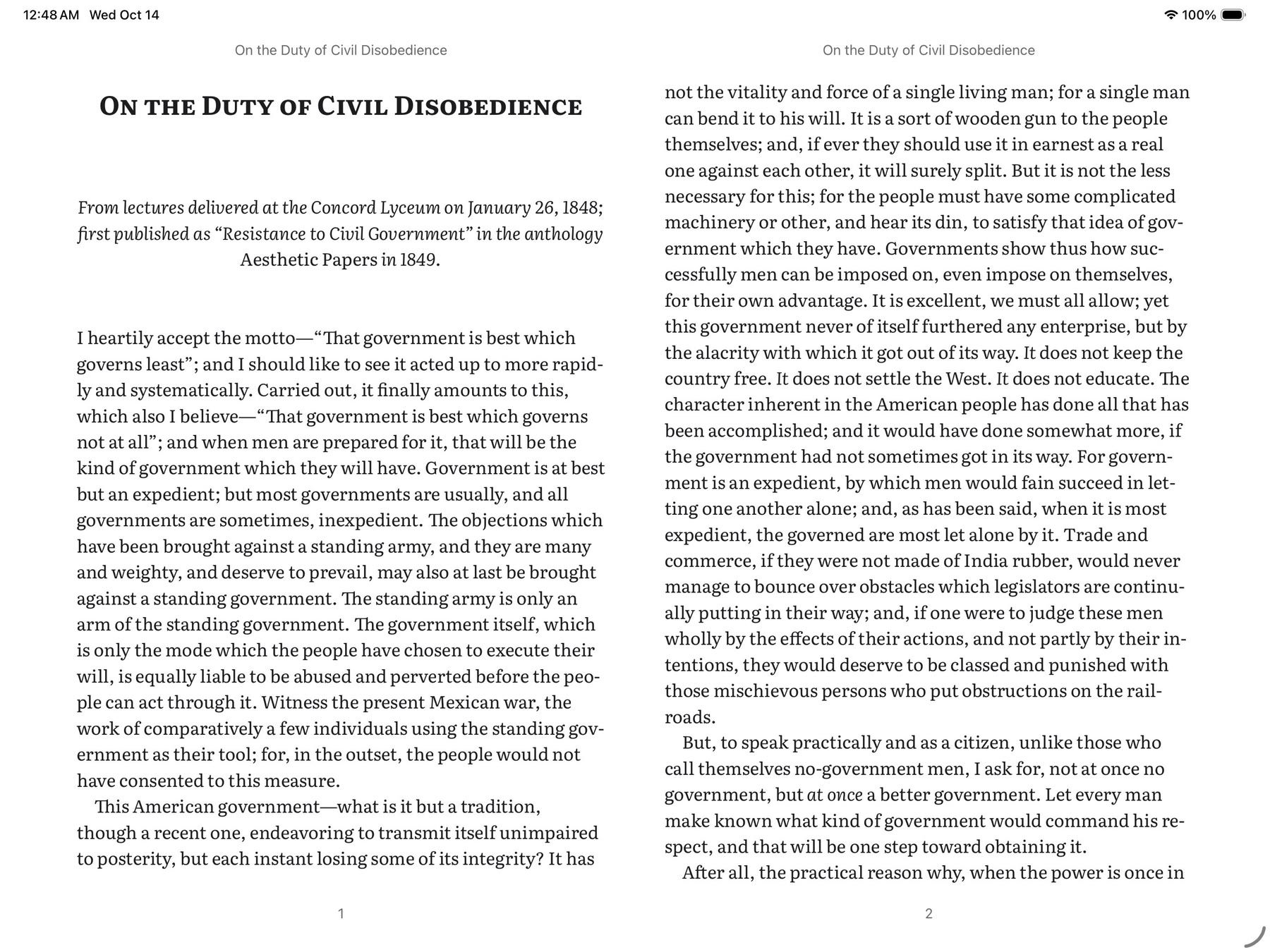
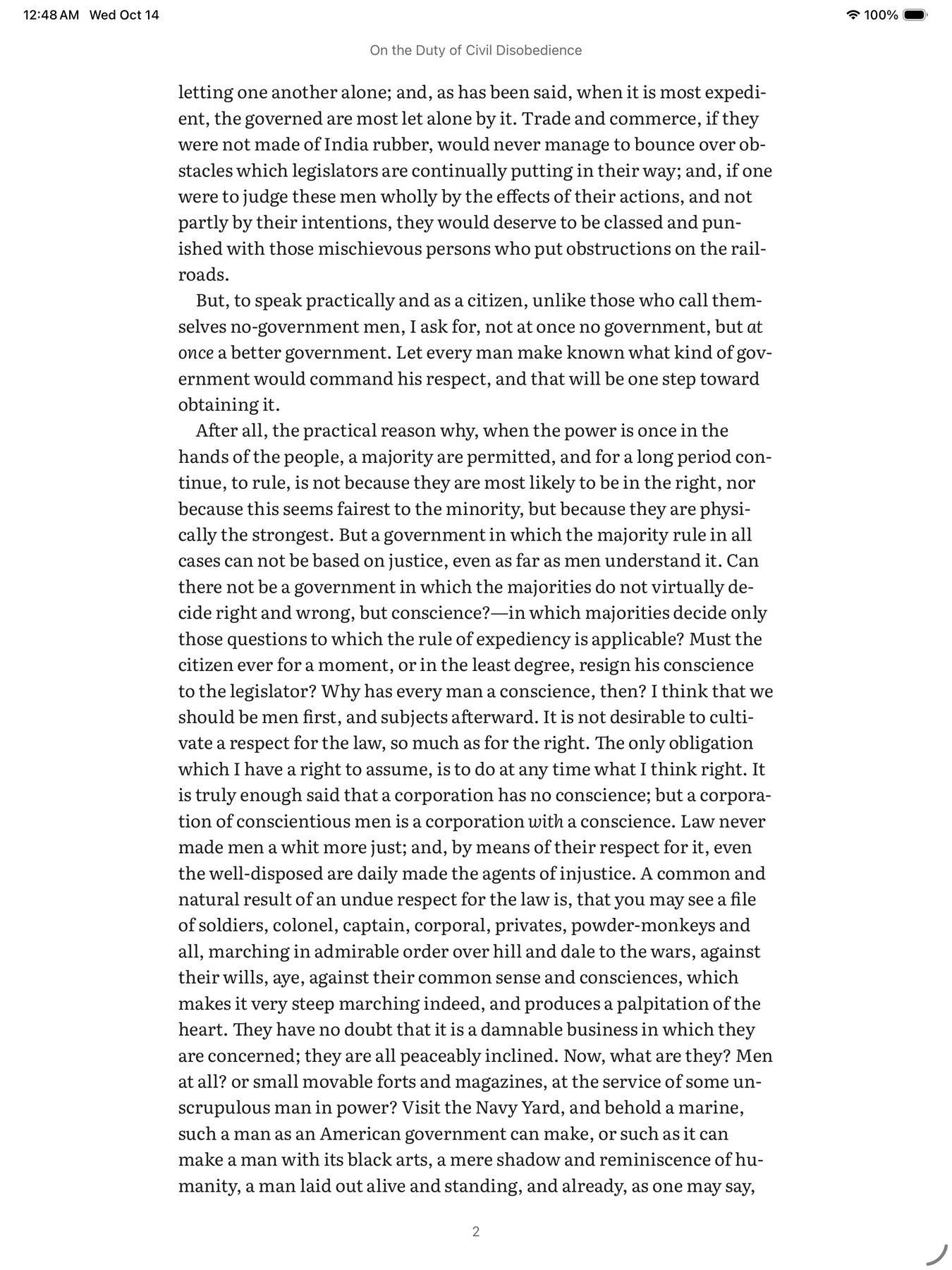
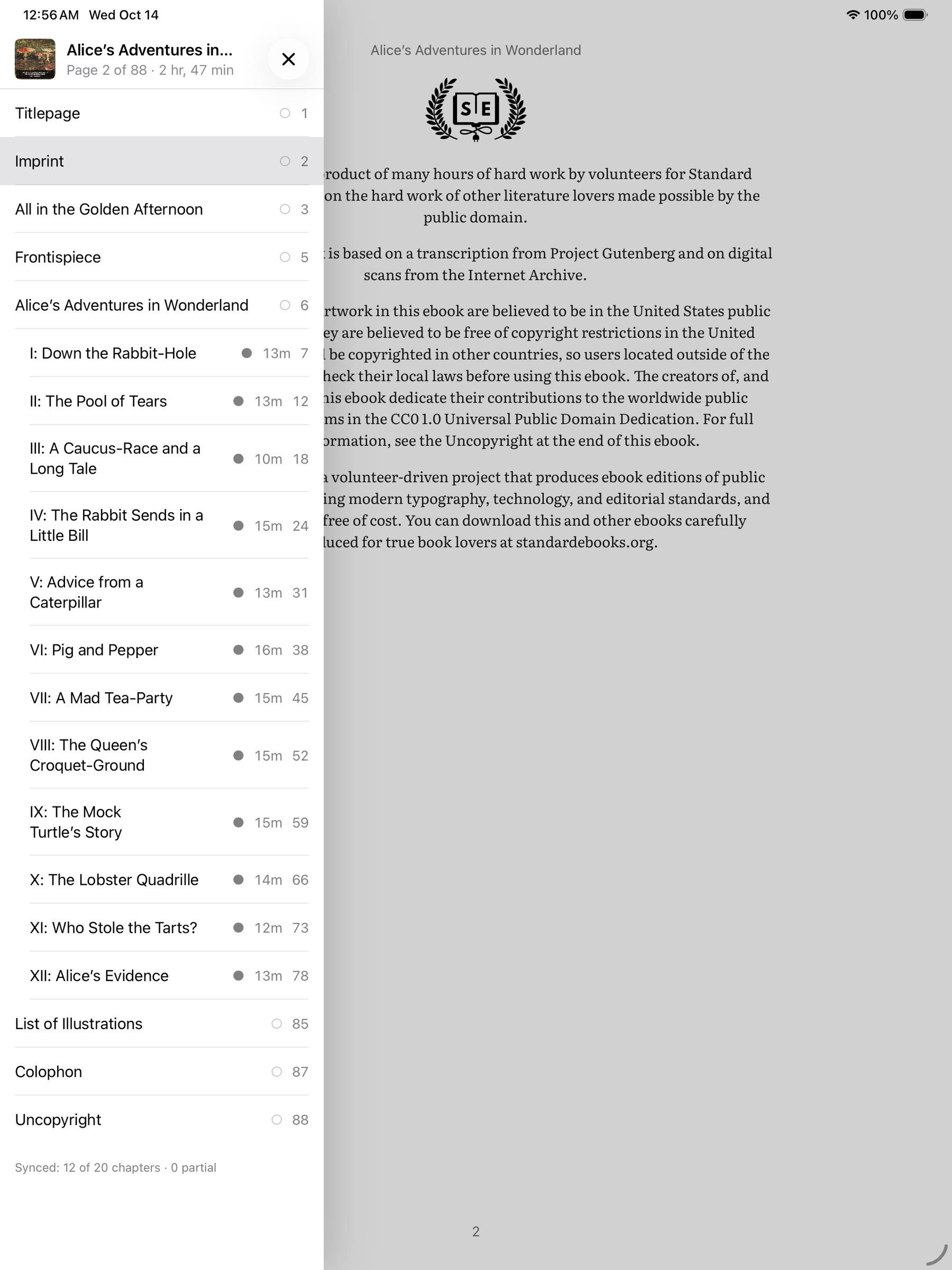
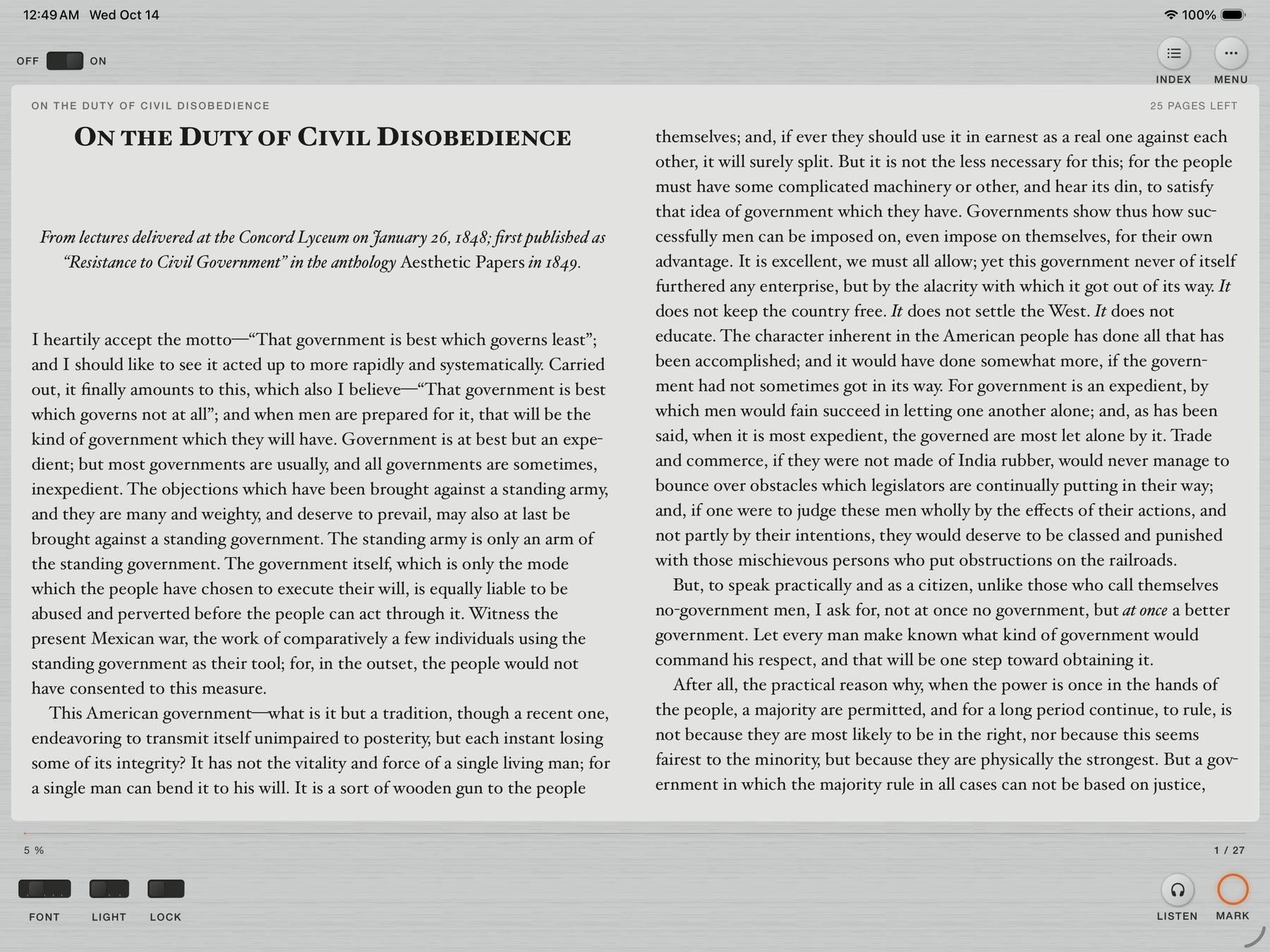
The reader sets a two-page spread with real margins and a gutter in landscape, and a single page in portrait. The text column has a fixed measure. Make the type bigger and it re-wraps inside that column instead of stretching across the screen. Contents opens as a full-height sidebar with every chapter in view, and Command-T opens it from the keyboard.
Settings as a split view
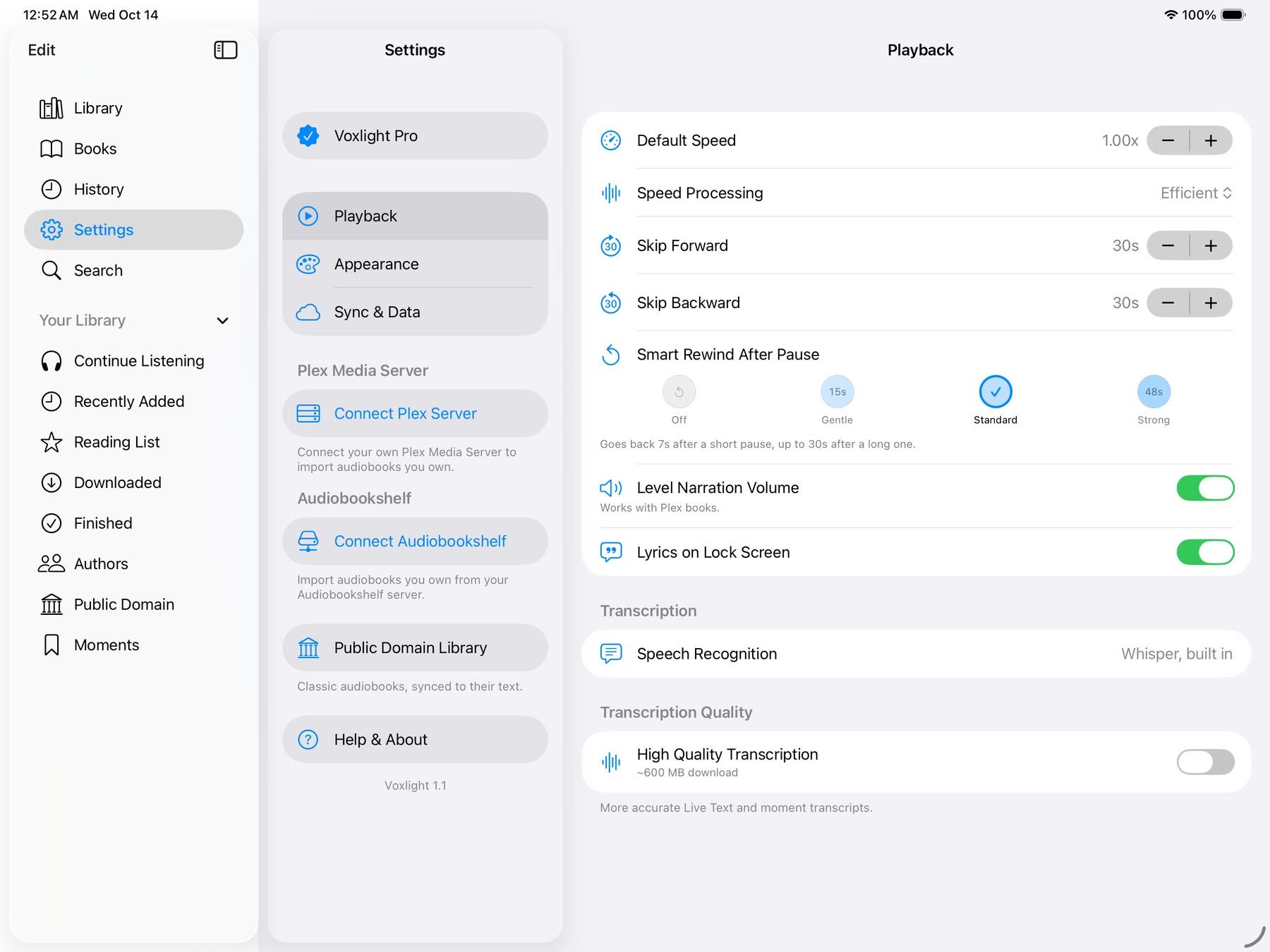
Settings keeps its list on the left and the pane you picked on the right, so every control sits next to its label.
Voice Control throughout
Every control in the player, the mini player, the reader, Live Text and the sheets answers to its visible name. The skins do too: each key on the Dieter, Pocket, Slate and Phosphor faces answers to the name printed on it, and all of them share one spoken vocabulary.
Skins on iPad
Skins dress the reader at every size. Dieter seats the page in an aluminium e-reader frame with its keys on the hardware; Pocket replaces the page with its own LCD console page. Slate sets the page under a graduated LCD glass. Phosphor, in the next update, seats the page in a box-drawing frame and prints every sheet as a videotext page. The skinned player faces are built for phone-sized space, so on a full-screen iPad the player keeps its standard look and wears the skin in narrow windows, like Split View.
One app across devices
The same rules carry to the other screens Voxlight runs on. On iPhone Duo the reader opens as a two-page spread with the gutter on the fold, and the player splits across the two halves: chapters or the transcript on one page, the player on the other. CarPlay is coming.